
Speech recognition and transcription for your Mac

Dictate or import a recording. Your prompt tells the AI what to make of the content. When you dictate, the result goes straight into your text field.

Read about all features
iTextorSimplified demo

Transcribe a recording with Textify

This example summarizes a recording. In the app, AI Enhancement can apply any prompt you write to the transcript.

idea-note.wavTranscript readyLanguage: automatic
AI editing: optional

Example transcript

Tomorrow I’ll water the plants, write a shopping list, and close the window.

See the original app
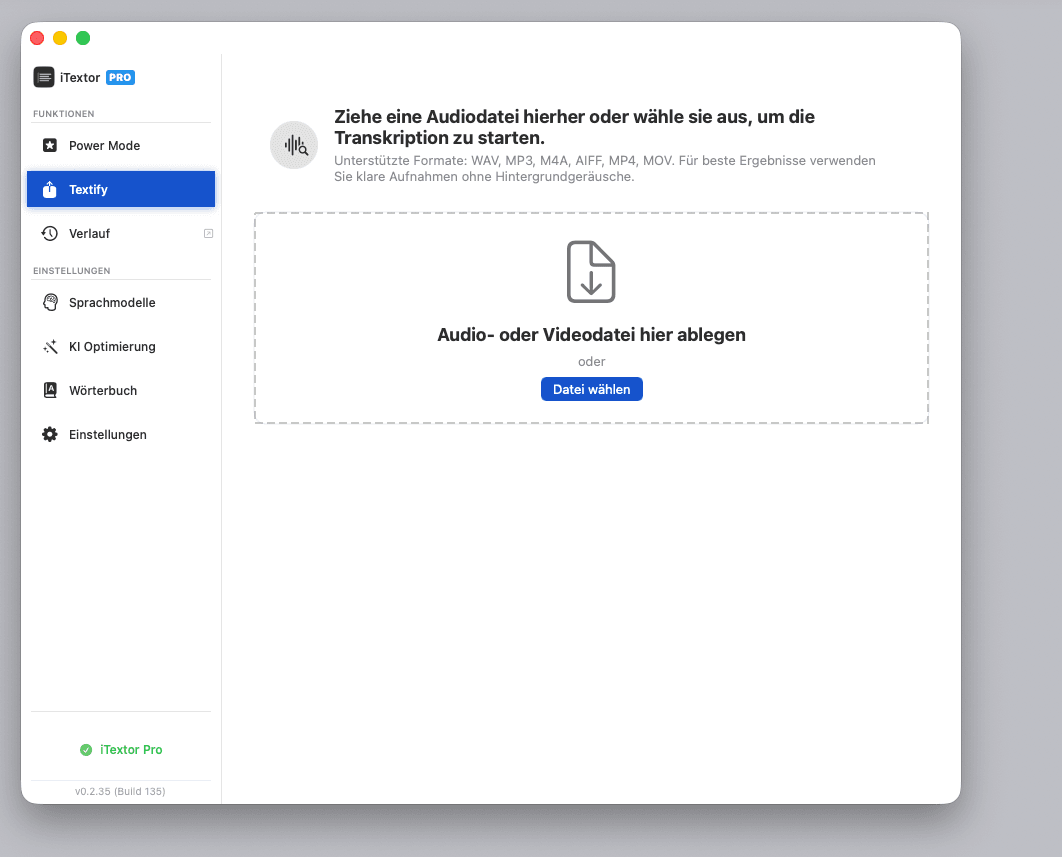
Original iTextor Textify import window with sidebar and file selection.
Original German app view. The interactive example above is simplified and uses sample content.

Try it with your own words.

14 days free · No credit card · macOS 15+ and Apple Silicon

Download free trial

What you can do with iTextor

Use your words as a transcript or as input for an AI task. You decide what the instructions should be.

Dictate and insert text automatically

See the interactive example

Start the mini recorder, speak, and stop recording. iTextor turns your dictation into text and inserts the result into the focused text field – for example, an email draft or a note.

You can apply an AI prompt to your dictation before it is inserted. A text preview is also available if you want one.

Transcribe audio and video files

See the interactive example

Textify turns existing recordings into text. Choose a file, language, and transcription model. AI Enhancement lets you apply your own prompt to the transcribed content. You can copy, save, or listen to the result.

Supported file formats: WAV, MP3, M4A, AIFF, MP4 and MOV.

Your own prompts and Smart Actions

See the interactive example

You decide what AI should make of your dictation or transcript. Write any prompt of your own or choose a Smart Action as a starting point. You could create a shortlist, a specialist brief, or a prompt for another AI tool. Corrections and translations are further examples.

Save your own prompts to use again. You can also start with one of 197 Smart Actions across 12 categories.

Power Mode for apps, websites, and specific pages

See the interactive example

Create profiles for apps or website addresses. Individual URL paths can have their own prompt too. For example, use one prompt for LinkedIn comments in Chrome and another for personal messages. You can also add rules for Slack, Microsoft Teams, and other sites. Choose the prompt, language, transcription model, and AI model for each profile.

Website rules take priority over app profiles. Create separate profiles for different tasks on the same site. The setup help in the example explains URL matching. Screen and clipboard context remain optional.

Run AI on your Mac or use a cloud provider

Download speech recognition and AI models directly in iTextor. Then use them on your Mac without an internet connection. Downloads and updates require a connection.

You can also connect a cloud provider. It receives the content it needs for processing. Choose the speech recognition model and the AI model for your prompts separately.

Dictionary, history, and text output

Personal dictionary
Add your own names and specialist terms to support speech recognition. You can edit, enable, and disable entries.
Transcription history
Search and filter past transcriptions, review original texts and recordings, and use text actions to work with them further.
Text output and permissions
Use the optional text preview or save dictation as a text file instead of inserting it. Microphone access enables recording; Accessibility permission enables insertion at the cursor.